
This guide is the GitHub Desktop quick start for Millennium Dawn. Use it alongside the two maintained references below so each procedure has a single home:
- Developer Setup: install the tools, connect the mod to the launcher, and run pre-commit hooks.
- Git Workflow: branches, commits, merge conflicts, and pull requests in detail.
New to Git? Git tracks every change to the codebase. Branches are separate workspaces; you
make changes on your branch, then merge them into main through a pull request.
Install GitHub Desktop
Download and install GitHub Desktop (opens in new tab). Sign in with the GitHub account that has access to the repository. GitHub Desktop is the recommended Git GUI for this project: it is free, simple, and connects directly to GitHub.
Clone the Mod
Outside contributors: fork the repository first (see Git Workflow: Outside Contributors (Fork)), then clone your fork instead of the main repo.
-
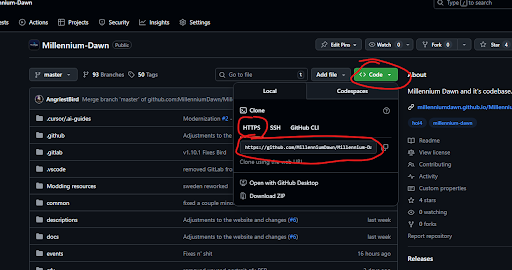
Open github.com/MillenniumDawn/Millennium-Dawn (opens in new tab).
-
Click Code and copy the HTTPS URL. Do not use the SSH or GitHub CLI options; they are not set up for this workflow.
-
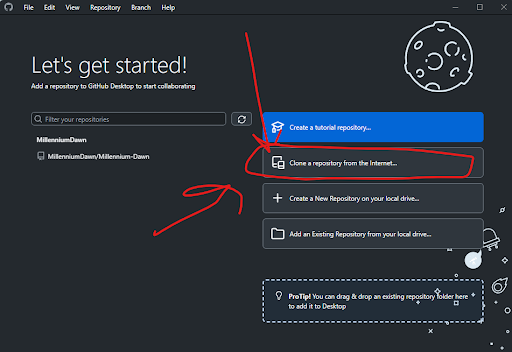
In GitHub Desktop, choose Clone a repository from the Internet and paste the URL.
-
Set the local path to your HOI4 mod folder (the drive where Paradox stores files):
C:\Users\<name>\Documents\Paradox Interactive\Hearts of Iron IV\mod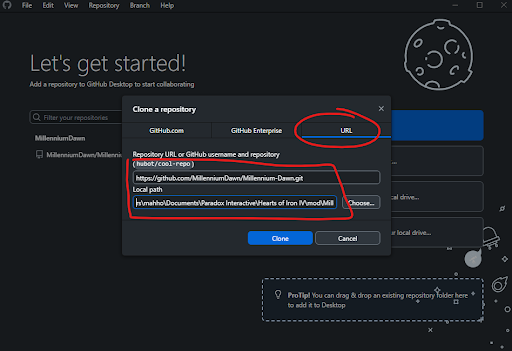
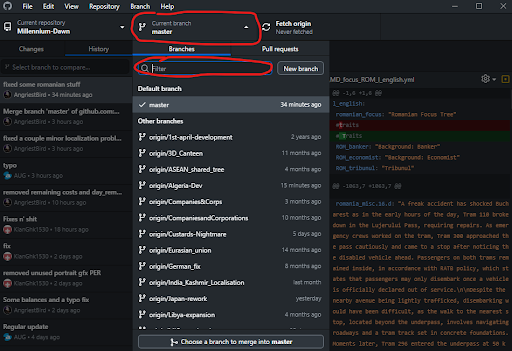
If cloning fails with an “Authentication failed” message, follow the authentication failed cloning repo guide. If the cloned
Millennium_Dawnfile shows as a video or unknown type, open it in Notepad or Notepad++. -
Wait for the clone to finish. A slow connection (under 200 KB/s) can cause it to fail; retry, or use a shallow clone with
git clone --depth 1.
For connecting the cloned mod to the launcher and enabling the Developer Version, see Developer Setup: Setting Up the Mod for Testing.
Make a Commit and Push
- Edit the mod files in your text editor as usual.
- In GitHub Desktop, your changed files appear in the left panel.
- Select the files for this commit, or stage all changes.
- Write a short, descriptive summary (for example “Add Serbian election focus tree”).
- Click Commit to
<your-branch>. - Click Push to upload your commit to GitHub.
Commit messages should be specific and in past tense: “Fixed Serbian election focus prerequisite”, not “Fixed stuff”. Pre-commit hooks run automatically and flag issues before you push. See Git Workflow: Making Changes for message conventions.
Pull and Stay Up to Date
- Click Pull in GitHub Desktop to download changes others made to your branch.
- Keep your branch synced with
mainto avoid large merge conflicts. Switch tomain, pull, switch back to your branch, then mergemainin.
See Git Workflow: Staying Up to Date with Main.
Merge Conflicts
When Git cannot combine two edits to the same lines, it marks a conflict. GitHub Desktop shows a Resolve conflicts button, and the conflicted file shows markers:
<<<<<<< HEAD
your changes on the current branch
=======
changes from the branch being merged in
>>>>>>> main
Delete the markers and keep the correct code, then commit. A file can have several
conflicts, so search for <<<<<<< to find them all. See
Git Workflow: Merge Conflicts.
Open a Pull Request
- Push your branch to GitHub.
- On the repository page, click Compare & pull request.
- Set the base branch to
mainand the compare branch to your feature branch. - Add a title and a description of what changed and why.
- Submit. CI validates your PR automatically; a team leader reviews and merges.
See Git Workflow: Pull Requests and the Contributing Guide.